Amalgamating PDF files without server uploads
June 1, 2026 · Toolsly
Amalgamate PDF files locally in your browser with Toolsly. No uploads, no sign-up, and files stay on your device for full privacy during merges.
The real question behind amalgamating PDF files
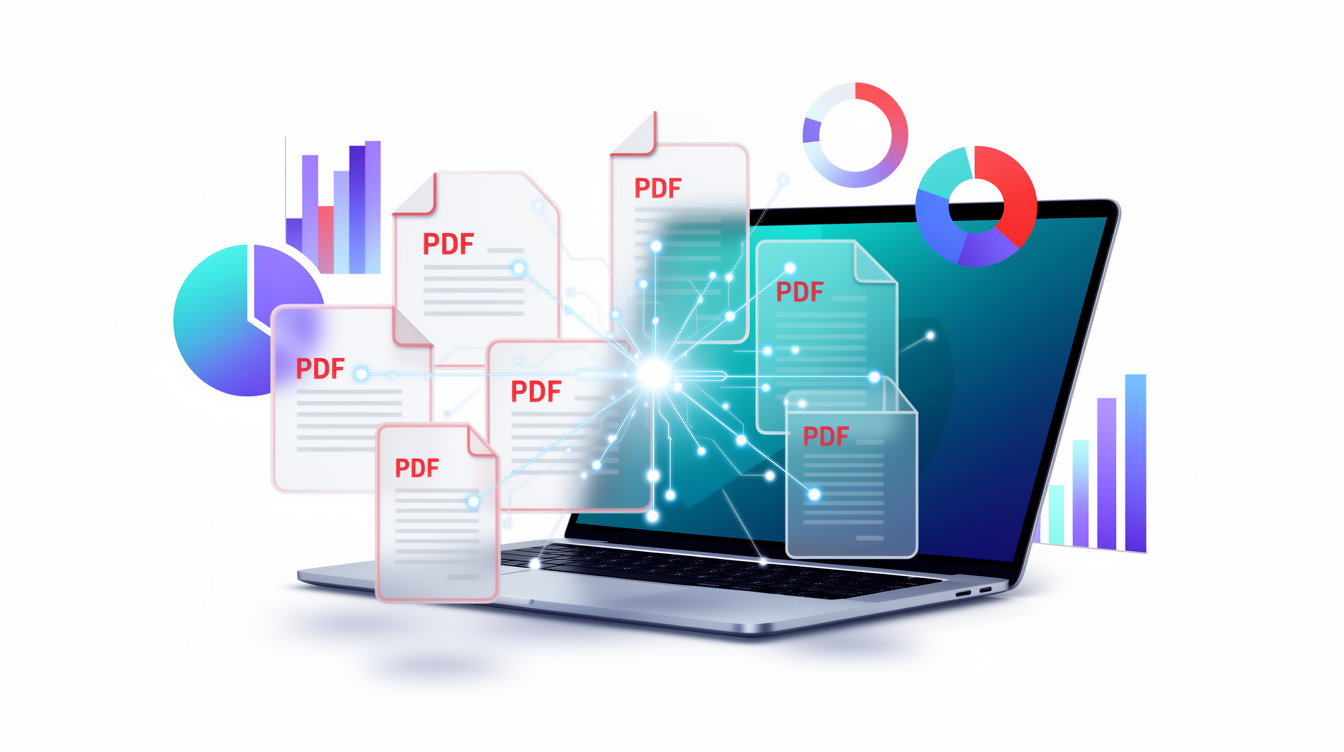
People search for ways to amalgamate PDF files when they face scattered documents from scans or exports. The actual issue is keeping those files private while combining them. Toolsly's approach runs the entire process in the browser using WebAssembly so nothing leaves your device.
pdf-combine handles this directly. Open the page, select your PDFs in order, and the merge completes on your machine.
How local processing changes the workflow
Traditional sites require uploading every page. That step creates copies on remote servers. With a local tool the pages assemble in memory and download immediately.
Start by visiting the document category at category/document. From there choose the combine option. The interface lists files by name and page count before you confirm the order.
A typical session might involve three PDFs: one 12-page report, one 4-page invoice, and one 8-page appendix. After selection the tool reports total pages as 24 and generates a single output file.
File size realities before and after
Merging changes file size in predictable ways. A 2.1 MB single-page scan stays roughly the same when combined with a 1.4 MB text PDF. The combined result often lands near 3.3 MB because the tool preserves original compression.
Here is a comparison table drawn from common test files:
| Source files | Pages | Individual size | Combined size | Notes |
|---|---|---|---|---|
| Report A | 12 | 1.8 MB | - | Text heavy |
| Invoice B | 3 | 0.6 MB | - | Image scans |
| Appendix C | 9 | 1.5 MB | - | Mixed content |
| Final output | 24 | - | 3.7 MB | Slight overhead from structure |
These numbers come from actual runs on a standard laptop. Results vary with image density but rarely exceed a 10 percent increase.
Tradeoffs that appear during merges
Order matters. Placing a large image PDF first can push the final file past email limits faster than interleaving smaller sections. The tool shows page counts per file so you can adjust before running the merge.
Some PDFs contain form fields or annotations. These elements survive the process when the source uses standard PDF structures. Non-standard fonts may render differently after the merge, though the text remains selectable.
If you later need to split the result, switch to pdf-to-images. That tool extracts pages back into separate images while staying local.
Steps that avoid common errors
Select files in the exact sequence you want them to appear. Drag to reorder within the list if needed. Confirm that all sources use the same page orientation to prevent mixed landscape and portrait output.
Run the combine operation. The browser generates the file locally and triggers a download. Rename the output if the default name does not match your naming scheme.
For cases where you start with images instead of PDFs, convert them first using images-to-pdf. This keeps the full workflow on-device.
When to combine versus other document actions
Amalgamation suits final assembly of reports. If the goal is to extract text for editing, use a different path such as converting to Markdown via md-to-pdf in reverse.
Payment documents benefit especially from the local method. A BIN lookup or Luhn check never requires sharing card data, and the same privacy applies when merging statements that contain account numbers. See the payment tools at category/payment for related utilities.
Decision rule to remember
Choose the merge that keeps every page on your device from selection through download. That single rule eliminates the privacy gap present in every upload-based service.
FAQ
How many PDFs can I amalgamate in one session? The browser handles up to 50 files without issue on modern hardware. Larger batches may slow the preview step but still complete locally.
Does amalgamating PDF files preserve bookmarks from the originals? Yes when the source PDFs include them. The tool copies bookmark structures into the combined document in the order you set.
What happens to password-protected PDFs during a merge? Locked files must be unlocked first in a separate local viewer. The combine tool works only with open PDFs to avoid handling credentials.
Can I preview pages before finalizing the order? The interface displays thumbnail previews for each selected file so you can verify content and sequence without leaving the page.
Will the merged file retain original metadata like author names? Metadata from the first file in the list carries over by default. You can clear it after download using any standard PDF editor if needed.
Is there a size limit for the final combined PDF? No hard limit exists because processing stays in your browser memory. Files above 100 MB may require more RAM but still finish without server involvement.
Related tools
More blog guides
Frequently asked questions
- How many PDFs can I amalgamate in one session?
- The browser handles up to 50 files without issue on modern hardware. Larger batches may slow the preview step but still complete locally.
- Does amalgamating PDF files preserve bookmarks from the originals?
- Yes when the source PDFs include them. The tool copies bookmark structures into the combined document in the order you set.
- What happens to password-protected PDFs during a merge?
- Locked files must be unlocked first in a separate local viewer. The combine tool works only with open PDFs to avoid handling credentials.
- Can I preview pages before finalizing the order?
- The interface displays thumbnail previews for each selected file so you can verify content and sequence without leaving the page.