Redact PDF documents in your browser
June 1, 2026 · Toolsly
Redact sensitive data from PDFs locally in the browser with no uploads or sign-up. See exact steps that keep files on your device using available conversion utilities.
Redaction defined
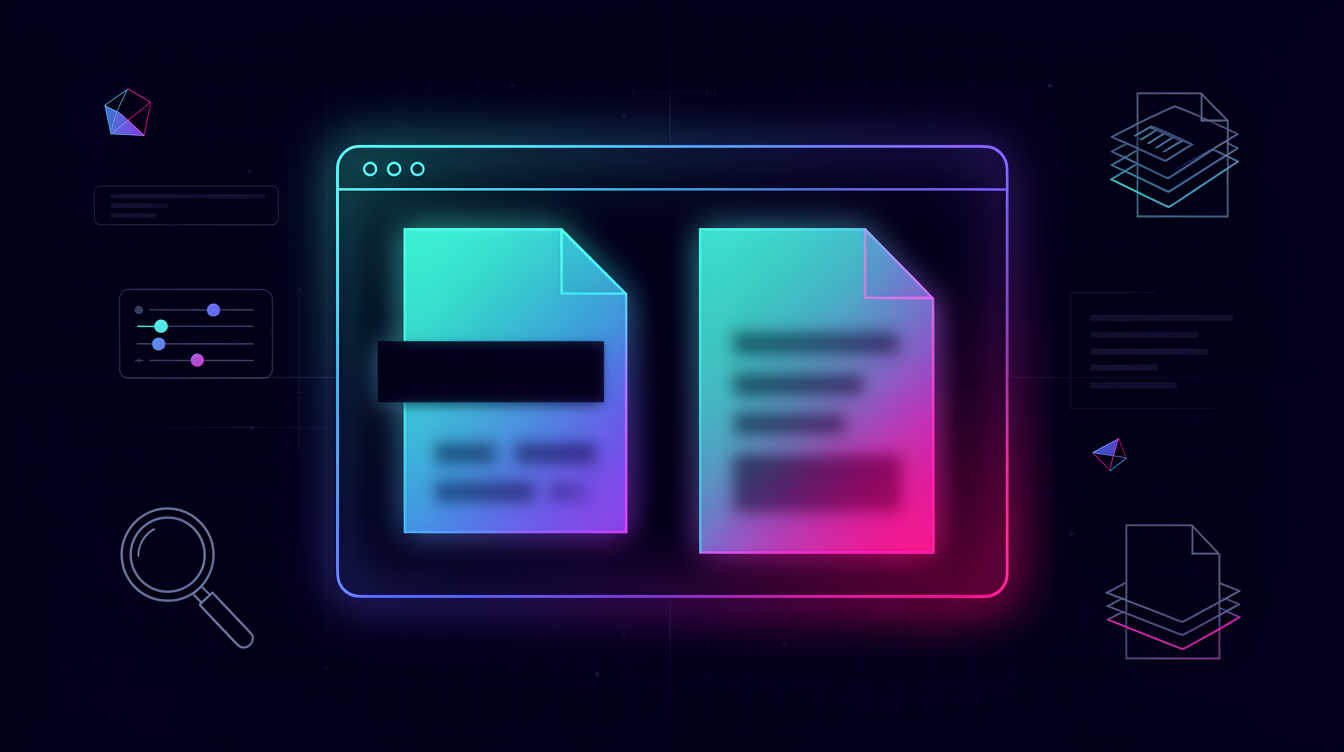
Redacting a PDF document means permanently stripping out chosen text or images so the removed content cannot be recovered even if someone opens the file in an editor. It differs from placing opaque boxes over text because those boxes can often be deleted later to reveal the original layer.
How redaction runs locally
All processing happens inside the browser through WebAssembly modules. Your PDF stays on the device the entire time. No bytes travel to any server. This setup matters most when the file holds payment details or personal IDs.
Start by opening the file with a conversion step that turns pages into separate images. Then edit those images to cover the parts you want hidden. Finally combine the edited images back into a single PDF.
Concrete inputs and outputs
A typical run takes a 12-page PDF that is 1.8 MB. After conversion you receive twelve PNG files each around 420 KB. You cover the sensitive zones on three of those PNGs. The final combined PDF lands at 1.4 MB and contains no recoverable text underneath the black rectangles.
Another example starts with a 4-page contract sized 680 KB. Conversion yields four images. After redaction the rebuilt PDF is 510 KB.
Step-by-step workflow
Convert pages to images
Use the conversion utility at PDF to Images. Select your file and choose PNG output at 150 DPI. The tool writes one image per page.
Cover sensitive areas
Open each image in an editor that supports pixel-level replacement. Draw solid black rectangles over names, account numbers, or addresses. Save the changed images with the same names.
Rebuild the PDF
Return the edited images to Images to PDF. Upload the sequence in the original page order. The tool produces a new PDF with the redactions baked into the pixels.
| Step | Input | Output | Typical size change |
|---|---|---|---|
| 1 | Original PDF 1.8 MB | 12 PNG files | +3.2 MB total |
| 2 | 12 PNG files | 3 edited PNGs | -120 KB per edited file |
| 3 | 12 PNG files | Final PDF | 1.4 MB |
Real workflow examples
A human-resources team receives monthly reports containing employee IDs. They convert the 22-page report once, redact the ID column on each image, and store the cleaned PDF. Total time on a mid-range laptop is under four minutes.
A freelancer handling client contracts converts each signed PDF to images, blacks out pricing sections that must stay private, and returns the final file to the client. The process repeats across eight contracts per month.
Limits to keep in mind
Redaction performed this way is visual only. If the original PDF contains embedded text layers the new file will not carry searchable text. Optical character recognition can sometimes recover printed text from the images, so treat the result as private but not cryptographically secure.
The method also increases file size when high-resolution images are kept. Dropping DPI to 72 reduces size at the cost of readability on large screens.
Where to start
Open PDF to Images with a sample file that contains text you want hidden. Run the conversion, edit one page, and rebuild with Images to PDF to see the result in under two minutes.
FAQ
How can I verify that text is truly gone after redaction? Open the finished PDF in a text-extraction viewer. Search for the redacted strings. If nothing appears the visual layer is clean.
Does redaction change the page count? No. Each original page maps to one output page. The only change is that certain areas become solid color instead of readable content.
Can I redact only part of a page without affecting the rest? Yes. Edit individual images after the first conversion step. Leave all other areas untouched before rebuilding the PDF.
What happens to digital signatures during this process? Signatures rendered as images survive. Cryptographic signatures attached to the original file are lost because the new PDF is created from pixels rather than the source object tree.
Is there a way to redact vector text instead of raster images? Current local tools do not offer vector-level text removal. The image route remains the only on-device option listed here.
Related tools
More blog guides
Frequently asked questions
- How can I verify that text is truly gone after redaction?
- Open the finished PDF in a text-extraction viewer and search for the redacted strings. If nothing appears the visual layer is clean.
- Does redaction change the page count?
- No. Each original page maps to one output page. The only change is that certain areas become solid color instead of readable content.
- Can I redact only part of a page without affecting the rest?
- Yes. Edit individual images after the first conversion step. Leave all other areas untouched before rebuilding the PDF.
- What happens to digital signatures during this process?
- Signatures rendered as images survive. Cryptographic signatures attached to the original file are lost because the new PDF is created from pixels rather than the source object tree.